How to make an accurate map and adjust the path using a vector map maker
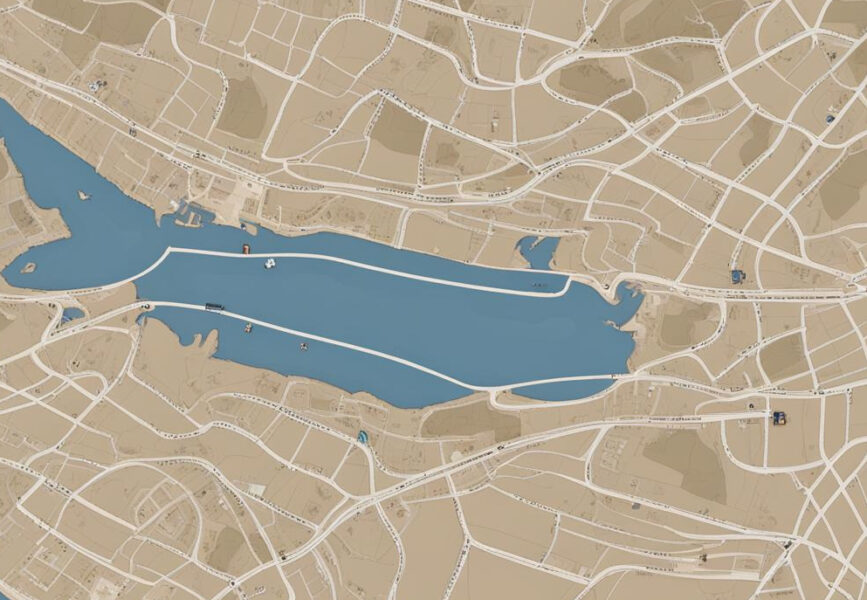
A simple map can be easily created using an illustrator, but if you want to make an accurate miniature map, it will take time to trace the captured Google Maps. In such cases, we have summarized how to create maps using a vector map maker that is convenient, accurate, and time-saving.
Contents
- 1 What is a vector map maker 2 The flow of obtaining the map information (DFX data) of the vector map maker
- 3 Edit vector map data with illustrator
Contents
What is a vector map maker
?TheVector Map Maker is a free mapping software for creating vector maps that can be used in CAD and Illustrator. This software allows you to download and process basic map information and national numerical information of the target area, and create high-precision DXF format maps for free.
Vector Map Maker creates a map in DXF format by synthesizing basic map information from the Geographical Survey Institute of Japan, land numerical information from the Ministry of Land, Infrastructure, Transport and Tourism, and elevation data from the National Geophysical Data Center.
answer came out at SGE, so please refer to it.
In short, it is an app that allows you to edit the data of basic map information with vector data.
Flow to obtain vector map maker's map information (DFX data)
Map vector data downloads data from the Geographical Survey Institute of Japan as data that can be edited with an app called Vector Map Maker.
The vector data is edited with an illustrator, etc.
- Download Vector Map Maker
- Download "Site Data" from the Geographical Survey Institute of Japan
- Set and download "Basic Map Information"
Let's explain them in order.
Download Vector Map Maker

Vector Map Maker is located in Vector, so download it from there.
Windows version only.
https://www.vector.co.jp/soft/winnt/writing/se479527.html
Download "Site Data" from the Geographical Survey Institute of Japan
Download the base map information from the following site.
You will need to create an account to download, so you will create one and proceed.
Click here for the basic map information download service

Set and download "Basic Map Information"
Select the area where you want map information and download the data.

You can select the map displayed on the screen and select the downloaded data. Easy.

This time, I chose the area of "Kobe".

Select "523501" and move on to downloading.

Check if the data you want to download is available and download it. It's easy to understand.
 Now
Now that we have the data for the area we want, we will convert this data into vector data (PDF) so that we can edit it.
Basic Map Information
Use Vector Map Maker to edit the Basic Map Information you downloaded earlier.
DXF (Drawing Exchange Format) is a file format for storing drawing data created with CAD software.

Move the downloaded Foundation Map Information Zip data to the Foundation Map Information folder in Vector Map Maker.
 When you
 launch "Vector Map Maker" and select "Unzip Data", the data of the base map information is loaded.

After that,
- Printers
- Paper Size
- Map name
- Coordinate system
Select etc., and then select "Specify on Map".

Finally, click "Start Processing" to start exporting the map data.
By default, VectorMapMaker should have > dxf file exported to the map folder.
This time, I exported it in PDF format.
Edit vector map data with illustrator
When you open the downloaded PDF data in the illustrator, you can edit it with vector data.
The layer has a
- Water Body Layer
- Waterline Layer
- Road Edge Layer
- Sidewalk and separation layer
- Architectural Layers
It is divided into details.

If you think that you can use it as it is, you are wrong.
If you look closely, the lines of roads and buildings are not connected.
 It
It is difficult to select and connect the lines one by one, so I will connect them with the shortcut [Ctrl] + [J].

Now the closed pass is ready!
 These are the tips for processing maps created
 with Vector Map Maker.
Using this method, you can create accurate maps in less time.