[Memo] How to change lip color in Photoshop
Hello,
"Pu ("Pu" is a half-width kana)".
(You don't have to pronounce the part of ("pu" is a half-width kana))
In this article, we will show you how to change the color of your lips in Photoshop to be more natural.
Contents
- 1 (1) First, prepare
- the original image2 (2) Select the lips with the selection tool
- 3 (3) Blur the lips with a solid application 4 (4) Blur the fill layer
- 5 (5)Change
- layer mode to multiply6 (6)Adjust the "Blend Condition" of the layer effect
- 7 (7)Complete
- 8 Conclusion
Contents
(1) First, prepare the original image
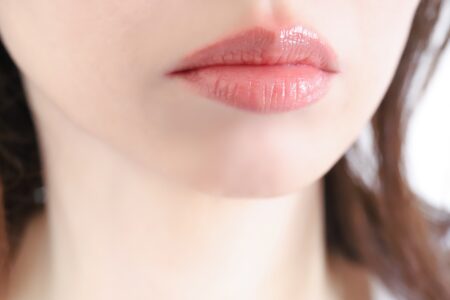
First, prepare the original image.
Since the color of the lips is lighter, I would like to make it bright red this time.
(2) Select lips with the selection tool
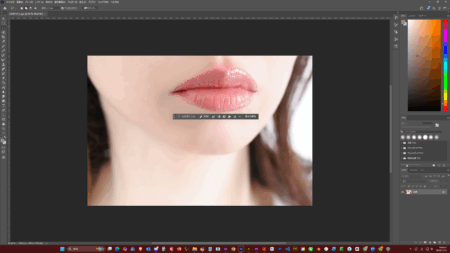
the lip contour with a selection tool such as the lasso tool.
(3) Make your lips bright red with a sticky coat
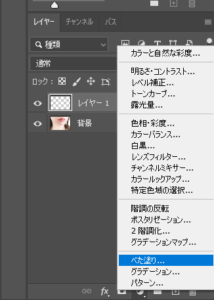
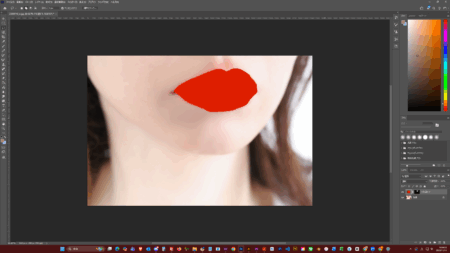
Increase the layer, click the capsule mark below, and select "Solid Coating".
If you choose red, your lips will be filled with stickiness as described above.
(4) Blur the fill layer
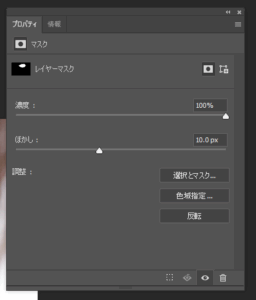
Select the layer mask for the fill layer and make the blur bar below about 10px.
(5) Changed layer mode to multiply
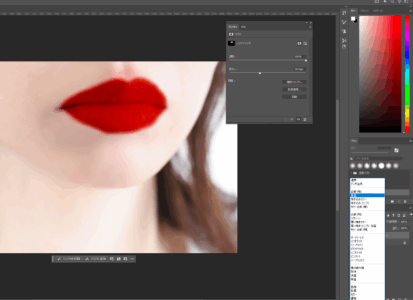
By changing the layer mode to multiply, the colors blend in a little.
(6) Adjust the "blending conditions" of the layer effect
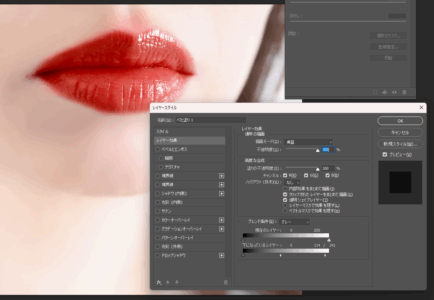
Double-click on the fill layer to bring up the "Layer Style" window.
Let's adjust the white arrow of the "Layer below" in the "Blending Conditions" below it.
These arrows can actually be disassembled by holding down the Alt key and allowing for finer adjustments.
(7)Done
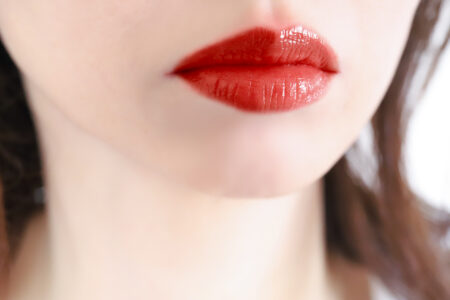
Here is the finished product.
summary
what did you think?
In order to become a top-notch designer, it is essential to devote yourself every day.