Suddenly not connected to NAS! What to do? I will do this! !

Hello! This is the producer's Rikki~.
The other day, I received an urgent call from a customer.
"The NAS that I was able to use normally until yesterday suddenly became inaccessible today!"
Well, Ithought it was the usual SMB, but I should have done it in the first place.
Is it possible for the check to suddenly come off?
No, I thought it couldn't be like that, but here is this information!
cause is blocking guest access!
Windows 11 24H2 introduces enhanced security for the SMB protocol and
The following changes have been made and are also so.
- Disabling guest logon
Access without authentication (guest logon) is now blocked by default. - Require SMB signatures
SMB signatures are now mandatory to verify the integrity of communications, and connections with NAS that do not support this are no longer possible.
As a result, there are more and more cases of connection errors, especially in environments using old NAS or guest access.
Well, it's security, so there are some parts that can't be helped...
NAS is less likely to break than a regular computer, and
I thought that if I had set up a RAID with a dedicated HDD, I would be able to use it for a long time just by replacing it< but br />
Apparently not.
So what to do?
What to do >
1. Set up user authentication on the NAS side (recommended)
The most recommended solution is to set access restrictions to shared folders on the NAS side and require user account and password authentication.
Specific steps (depending on NAS model)
-
Access
- the NAS management screen from a web browser.
- Open the shared folder settings screen.
- In the permission settings, look for items such as "Don't allow guest access" or "Allow access only to specific users."
- Create a user account to allow access and set a password.
- Set the access permissions for the user account you created for the shared folder.
By setting this up, you can access it securely from Windows 11 24H2 or later environments by entering the username and password you have set.
2. Change settings on the Windows side (deprecated, please use your own discretion)
If you haveto enable guest access, you may be able to connect by changing the following settings:
However, please do so at your own risk.
For Windows 11 Pro
Enable insecure guest logon
- Press Windows + R, type gpedit.msc and click OK.
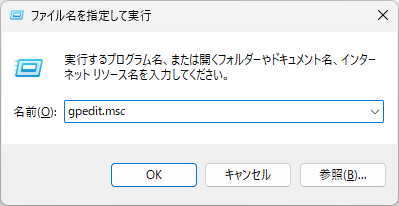
- The Local Group Policy Editor opens.
In the left pane, expand it in the following order< br /> Computer Configuration → Management Templates → Network → Lanman Workstation
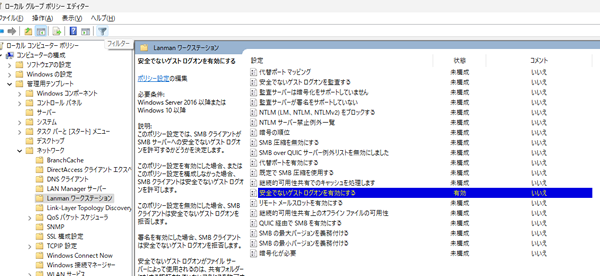
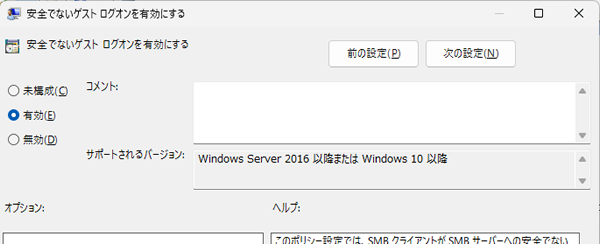
Double-click "Enable insecure guest logon" in the right pane, set it to "Enable" and click "OK".
Disable SMB signature mandatory
- In the left pane, expand in the following order
Computer configuration → Windows settings → Security Settings → Local Policy → Security Options
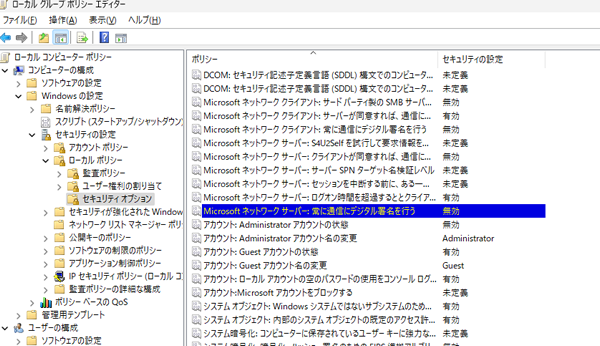
- Double-click Microsoft Network Client: Always digitally sign communications in the right pane, set it to Disabled, and click OK.
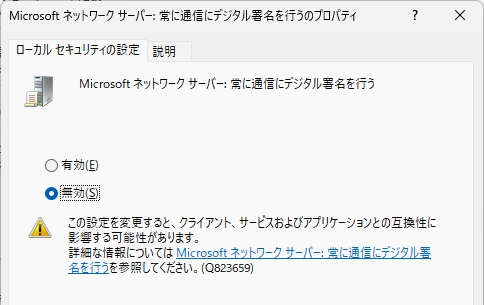
After setup, restart your PC.
For Windows 11 Home
Edit the registry and change settings
- Press Windows + R, type regedit, and click OK.
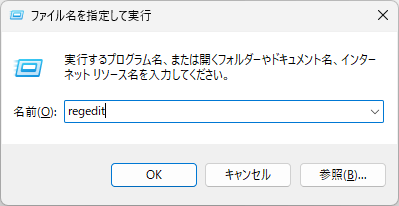 The
The - Registry Editor opens.
- In the left pane, expand the following keys:
HKEY_LOCAL_MACHINESYSTEMCurrentControlSetServicesLanmanWorkstationParameters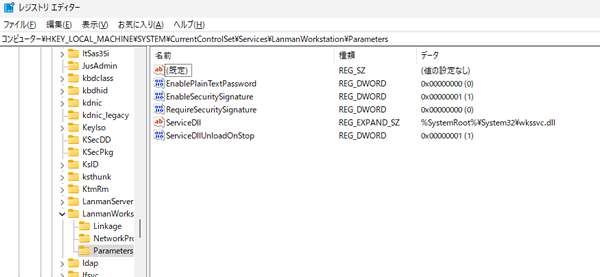
- Check the right pane for the presence of AllowInsecureGuestAuth.
If it doesn't exist, create a new DWORD (32-bit) value and name it "AllowInsecureGuestAuth".
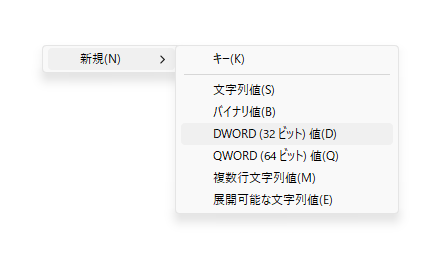
Double-click on "AllowInsecureGuestAuth", set the value data to "1" and click OK.
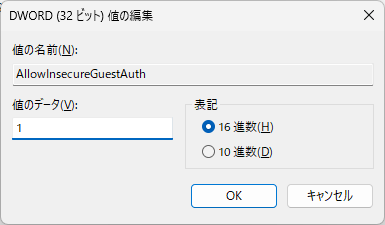
- Similarly, check if the "RequireSecuritySignature" exists.
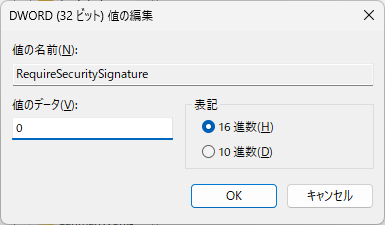
If it doesn't exist, create a new DWORD (32-bit) value and name it "RequireSecuritySignature".
Double-click RequireSecuritySignature, set the value data to 0, and click OK.
After setup, restart your PC.
summary? Notes
Guest logon and SMB signature disabling are security risks.
In particular, these configuration changes are not recommended in environments where a malicious user may gain access to the network.
This is just a temporary method. It is dangerous to make it permanent, so please keep in mind that this is only a temporary treatment.